Architecting a Local Ansible Lab - A Professional Guide using WSL 2 and Docker
In the world of DevOps, the “inner development loop”—the time between writing code and testing it—is critical. Waiting for cloud instances to provision or fighting with heavy virtual machines (VMs) adds unnecessary friction to this loop.
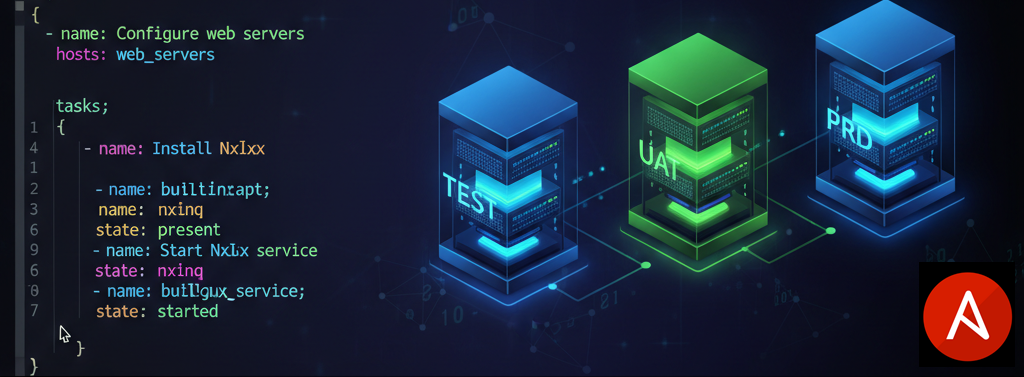
This guide details the architecture and implementation of a high-fidelity, local infrastructure lab using Windows Subsystem for Linux (WSL 2) and Docker. This setup allows engineers to simulate a multi-environment pipeline (TEST, UAT, PRD) with minimal resource overhead, perfect for developing and testing Ansible automation before deployment.
Who is this for? Complete beginners. You need zero prior knowledge of Ansible to follow this.
Prerequisites
Before we start, ensure you have the following installed:
- WSL 2 (Windows Subsystem for Linux): We will use Ubuntu as our command center.
- Ansible installed on WSL2
- Docker Desktop for Windows: This runs our “servers.”
- VS Code: For editing files.
Critical Setup Step:
Try to check docker version from your WSL

If it is not showing as below then
Ensure Docker Desktop is talking to your WSL distro. Go to Settings > Resources > WSL Integration and toggle your Ubuntu distribution ON.

Open your Ubuntu terminal and verify everything is ready:
docker --version

Phase 1: Building Your “Data Center” (Infrastructure)
We need three servers. Instead of heavy VMs, we will use lightweight Docker containers. However, standard Docker containers are “stripped down” and don’t allow SSH logins. We need to build a custom image that acts like a real server.
Step 1: Create Your Workspace
Open your WSL terminal and create a dedicated folder for this project.
mkdir -p ~/my-ansible-lab
cd ~/my-ansible-lab
Step 2: Create the “Server” Image
We will define a Docker image that has OpenSSH (so Ansible can log in), Python (so Ansible can run tasks), and Sudo (for admin rights).
Create a file named Dockerfile (no extension) in your folder:
# Use the official Ubuntu image as our foundation
FROM ubuntu:latest

# Install the "Plumbing" Ansible needs:
# 1. openssh-server: To allow remote login
# 2. python3: To execute Ansible modules
# 3. sudo: To perform admin tasks
RUN apt-get update && apt-get install -y openssh-server python3 sudo

# Configure 3 Users for our 3 Environments (Simulating Real World Access)
# We create users 'ansible-test', 'ansible-uat', and 'ansible-prd'
# We set the password 'password' for all of them for simplicity
RUN useradd -rm -d /home/ansible-test -s /bin/bash -g root -G sudo ansible-test && \
    echo 'ansible-test:password' | chpasswd

RUN useradd -rm -d /home/ansible-uat -s /bin/bash -g root -G sudo ansible-uat && \
    echo 'ansible-uat:password' | chpasswd

RUN useradd -rm -d /home/ansible-prd -s /bin/bash -g root -G sudo ansible-prd && \
    echo 'ansible-prd:password' | chpasswd

# Set up the SSH directory
RUN mkdir -p /run/sshd

# Expose Port 22 (The standard SSH port)
EXPOSE 22

# Start the SSH Daemon when the container boots
CMD ["/usr/sbin/sshd", "-D"]
Step 3: Build the Image
Run this command to build your custom server image. We will tag it ubuntu-base.
docker build -t ubuntu-base .

Step 4: Launch the Fleet
Now we spin up three separate containers. We map their internal SSH port (22) to different ports on your localhost so we can target them individually.
- TEST Server: Accessible on port 2222
- UAT Server: Accessible on port 2223
- PRD Server: Accessible on port 2224
Run these three commands:
docker run -d -p 2222:22 --name test-server ubuntu-base
docker run -d -p 2223:22 --name uat-server ubuntu-base
docker run -d -p 2224:22 --name prd-server ubuntu-base
Verify they are running:
docker ps

Phase 2: Setting Up Ansible (The Control Center)
Now that we have servers, we need to configure Ansible to talk to them.
Step 1: Create Professional Folder Structure
We will use Ansible Roles, which is the industry standard for organizing code. Run these commands to create the folders:
# Create directories for roles
mkdir -p roles/common/tasks
mkdir -p roles/nginx/tasks

# Create directories for config and playbooks
mkdir -p inventory
mkdir -p playbooks
Step 2: The Inventory File (hosts.ini)
This file acts as an address book for Ansible. Create inventory/hosts.ini:
[test]
test-node ansible_host=localhost ansible_port=2222 ansible_user=ansible-test

[uat]
uat-node ansible_host=localhost ansible_port=2223 ansible_user=ansible-uat

[prd]
prd-node ansible_host=localhost ansible_port=2224 ansible_user=ansible-prd

# Create a group that contains all environments
[docker_lab:children]
test
uat
prd

# Define variables for the group
[docker_lab:vars]
# The password we baked into the Dockerfile
ansible_ssh_pass=password
ansible_become_pass=password
# Prevent "Host Verification" errors since these are local containers
ansible_ssh_common_args='-o StrictHostKeyChecking=no'
# Explicitly use Python 3
ansible_python_interpreter=/usr/bin/python3
Step 3: Ansible Configuration (ansible.cfg)
Create a file named ansible.cfg in the root folder (~/my-ansible-lab). This tells Ansible where to find everything.
[defaults]
inventory = ./inventory/hosts.ini
host_key_checking = False
# Use YAML format for cleaner output
stdout_callback = yaml
# Tell Ansible where to find our roles
roles_path = ./roles
Phase 3: Writing the Automation Code
We will create two “Roles”. Roles are like functions in programming—reusable blocks of tasks.
Step 1: The ‘Common’ Role
This role installs basic utilities on every server. Create roles/common/tasks/main.yml:
---
- name: Install common utilities
  ansible.builtin.apt:
    name:
      - curl
      - wget
      - git
      - vim
    state: present

- name: Create a welcome message
  ansible.builtin.copy:
    content: "Welcome to  environment!"
    dest: /etc/motd
    owner: root
    group: root
    mode: '0644'
Step 2: The ‘Nginx’ Role
This role installs the web server. Since Docker doesn’t support systemd (the standard way to check services), we use a clever netstat command to verify the server is listening on port 80.
Create roles/nginx/tasks/main.yml:
---
- name: Update apt cache
  ansible.builtin.apt:
    update_cache: yes
    cache_valid_time: 3600

- name: Install nginx
  ansible.builtin.apt:
    name: nginx
    state: present

- name: Start nginx service
  ansible.builtin.service:
    name: nginx
    state: started
    enabled: yes

# Docker-specific check: Verify port 80 is open
- name: Verify nginx is listening on port 80
  ansible.builtin.shell: netstat -tuln | grep :80 || ss -tuln | grep :80
  register: nginx_check
  ignore_errors: yes

- name: Print nginx port check
  ansible.builtin.debug:
    msg: "Nginx is listening on port 80"
  when: nginx_check is succeeded
Step 3: The Playbook
The playbook ties everything together. It maps the roles to the hosts. Create playbooks/install-packages.yml:
---
- name: Configure all docker lab servers
  hosts: docker_lab
  become: yes  # Run as root (sudo)

  roles:
    - common
    - nginx
Phase 4: Execution and Verification
Step 1: Run the Playbook
This is the moment of truth. Run the following command from your project root:
ansible-playbook playbooks/install-packages.yml
You will see Ansible connect to all three containers, install the tools, set up Nginx, and verify the ports.


Step 2: Verify the Result
Let’s manually log into the TEST environment to confirm Nginx is serving traffic.
# Log in via SSH (Password is 'password')
ssh ansible-test@localhost -p 2222

Once inside the container, run:
curl http://localhost
You should see the HTML for “Welcome to Nginx!”.

Conclusion
You have successfully built a multi-environment infrastructure simulation and deployed software to it using Ansible—all without spending a dime on cloud costs.
You now have a portable lab where you can safely practice:
- Writing complex playbooks.
- Testing software upgrades.
- Experimenting with network configurations.
My sample project is uploaded to Github repository
Feel free to download source code and try.
Happy Automating!
Enjoy Reading This Article?
Here are some more articles you might like to read next: